Three steps, no password
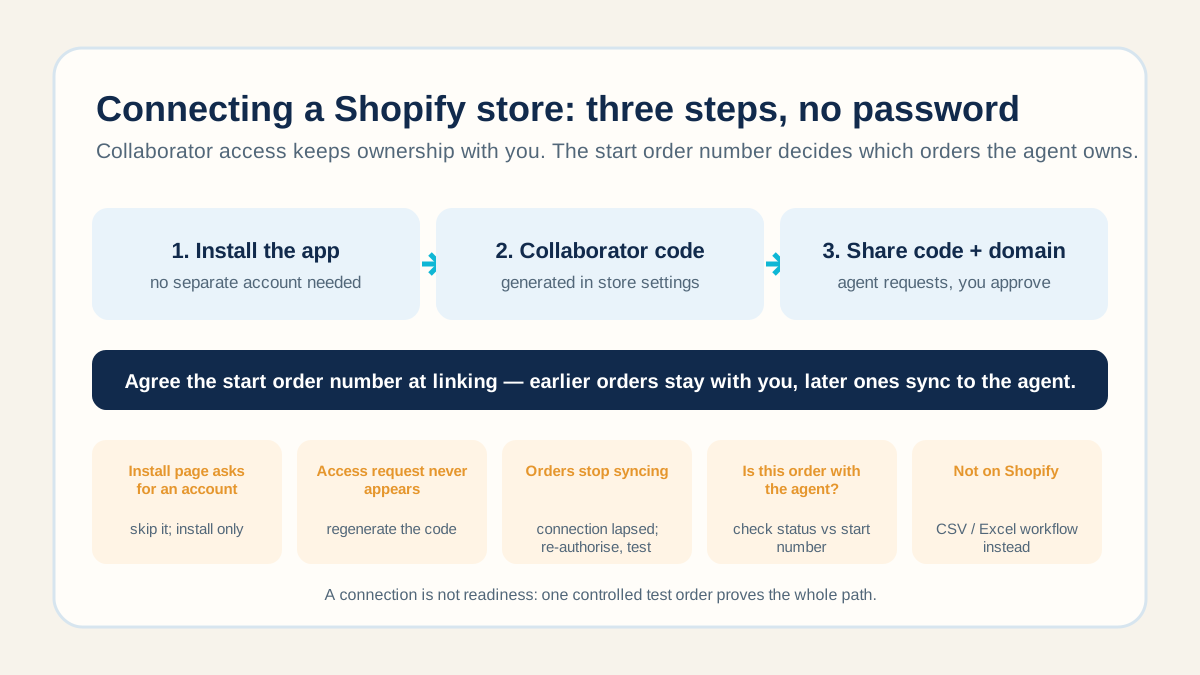
Connecting a Shopify store to us takes three steps, and none of them involves your password. Install our order-management app from your Shopify admin without creating a separate account; the install is the whole job. Then generate a collaborator code under your store's settings. Finally, share that code and your myshopify domain with us on WhatsApp. We request access against the code, a notification appears in your store, and you approve it. That is the connection.
The Shopify connection supports automatic order sync and tracking return. Confirm that your agreed test order actually appears on our side, then check its payment and release state before expecting fulfilment. After dispatch, tracking returns to the store and can trigger its shipping notification. You keep ownership of the store and can remove the approved access from your admin.
If anyone, including us, ever asks for your store login instead, stop and ask why. The collaborator route exists precisely so that your password never has to leave you.
Collaborator, not staff
Shopify offers two ways to let an outside party in: a staff account or collaborator access. We ask for collaborator access. A staff account uses one of your plan's staff slots and needs an email address to set up. Collaborator access uses no staff slot and needs no email, because the request is raised from our side against the code you generated. Asked which is better, we say collaborator every time; a staff seat is the fallback for a store that cannot use the collaborator route, not the default.
Agree the start order before the first sync
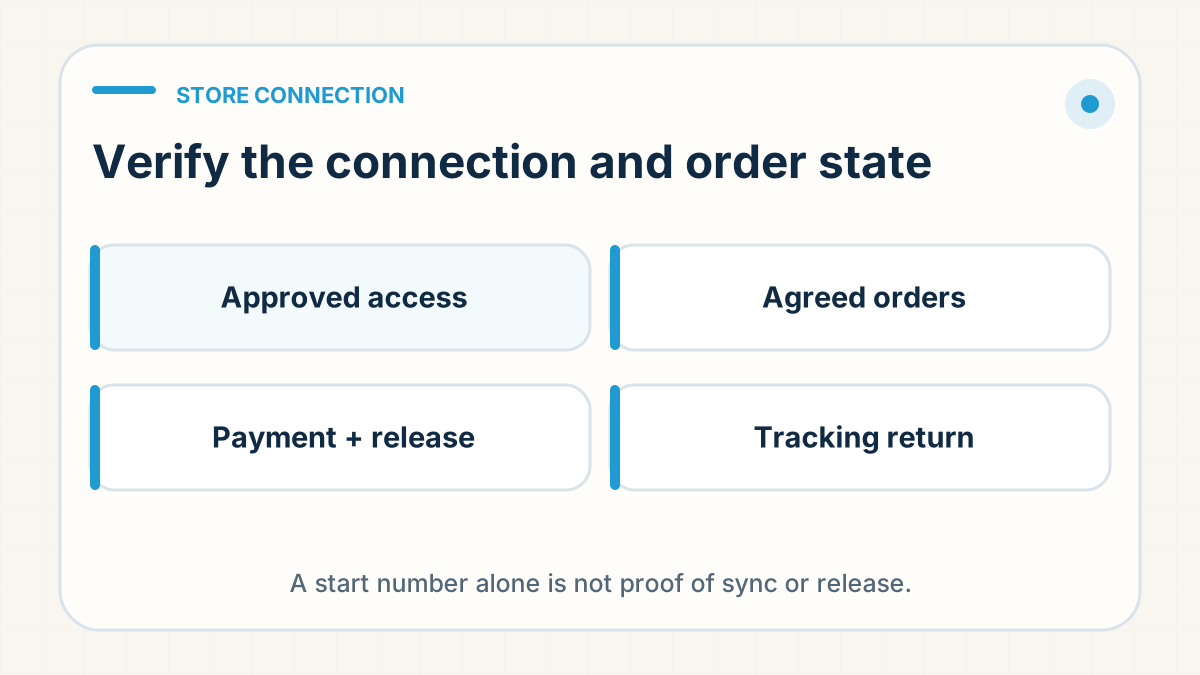
Before the first sync, agree the first order number and which orders RyanFulfil will handle, including any exceptions or earlier orders being transferred. Record that scope in writing. The number sets the intended handover boundary; it does not prove that a particular order has synced, been paid for or been released to fulfilment. Confirm those states against the actual order record.
This matters most for sellers switching from another agent or from fulfilling by hand. Orders already in someone else's queue should not be bought a second time, and orders you never handed over should not be chased as if we had missed them. The same rule covers a relaunch: when a dormant store goes live again, reconfirm the start order rather than assuming the old one still applies.
A sync moves order data. It does not decide which orders are in scope, when an order may be released, or what counts as shipped. Those are rules you and the agent agree, which is what a store integration does and does not solve.
The five things that go wrong, and the fix for each
- The app install page appears to demand an account. It does not. The install from your Shopify admin is complete on its own; if a registration screen appears, sometimes in a language you do not read, close it and carry on.
- The access request never shows up in your store. Check that you sent the myshopify domain rather than your custom domain, then regenerate the collaborator code and send the new one. Tell us when you have approved and we confirm the store is live.
- Orders quietly stop syncing. A store transfer, an app reinstall or a lapsed authorisation can break the connection without any error on your screen; orders simply stop arriving at our desk. Re-authorise, then place a test order and confirm it appears. Check the connection after any change of ownership, reinstall or relaunch before you assume the warehouse has gone quiet.
- You cannot tell whether an order is with us. Check whether it is within the agreed handover scope, then ask us to confirm that the exact order has synced and whether payment and release are complete. Shopify showing Unfulfilled, even after the agreed start number, does not prove it is in our queue. Confirm any hold or missing sync before promising dispatch.
- If you are not on Shopify, confirm your platform before following connection steps. Shopify and WooCommerce support the automatic order and tracking flow. For Etsy, eBay and TikTok Shop, agree the CSV or Excel order-file handoff and how you will receive tracking to update your side.
A connection is not readiness
A store showing as connected proves that data can move. It does not prove that the right SKU maps to the right product, that the address fields arrive complete, that a paid add-on line reaches our system, that the tracking number uploads in a format Shopify recognises, or that the customer email fires at the moment you intend. Each of those has failed somewhere while the connection itself looked fine.
So place one controlled test order before you launch and walk it all the way through: visible on our side, invoiced, paid, released, dispatched, tracking returned, notification sent. The platform preflight checklist lists every step. Tell us it is a test before we buy stock for it, then cancel it in Shopify.
If you are not on Shopify
WooCommerce connects directly too, with the same automatic order and tracking flow. For Etsy, eBay, TikTok Shop and other marketplaces the default is a controlled file workflow: you export orders as CSV or Excel, we process them once payment is confirmed, and tracking comes back to you to upload against the order. Automatic fulfilment on those platforms would need your account login, which we do not encourage sharing, so direct access is used only where a supported setup exists for that account and you are comfortable with it.
The file workflow needs owners: who exports, who imports, when the transfer happens and who uploads tracking. Fulfilling orders across Shopify, Etsy and TikTok Shop sets out the contract for each channel. Check the marketplace's own dropshipping policy too; some expect in-country stock.
What to tell your customer-service team
Give your customer-service team the agreed order scope and the actual status of each order: received by the agent, payment confirmed, released, dispatched and tracking returned. A start number or Shopify fulfilment label alone cannot establish every one of those states. If an order is missing, check the connection and the agent record; if a shipping email is missing, check the dispatch, tracking and notification records before explaining the delay to your customer.
Give them the difference between a label and a shipment as well, because a label created is not the same as shipped, and your customer is told the latter.
Prove the connection with one start order
Approve the agreed access, record the first order and any exceptions, and run one controlled test through sync, payment, release, dispatch and tracking return. Re-test after a transfer, reinstall or relaunch. Confirm the actual order state before treating a connection or start number as evidence that fulfilment is under way.
Case scope: this guide is an anonymised composite of client situations from August 2026, with no single seller, store or order described. Platform screens, menu names and access types change; the steps here describe the route as it worked in that period, so check them against the current Shopify admin and ask us if a screen does not match.
Have a specific fulfilment question?
Send us the product, destination and order context on WhatsApp (+86 178 4666 9989), and we'll answer for that order instead of giving a generic estimate.
Ask Questions on WhatsApp →