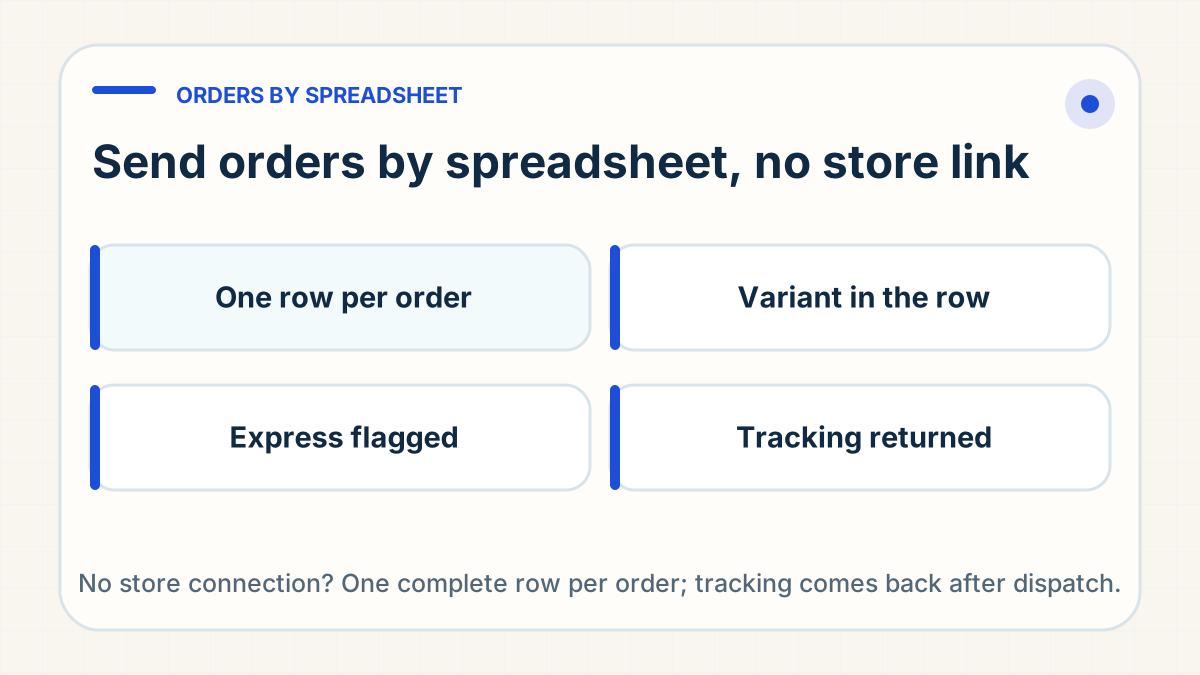
You can. If your store is not connected, or you sell on a marketplace, send your orders as a CSV or Excel file or in a shared order sheet: they are processed once payment is confirmed, and tracking comes back to you, posted in your group or entered in the sheet you share, to upload against each order. Give every order one complete row, keep problem cases on a separate tab, and connect the store once your platform supports it.
Can I send orders by spreadsheet without connecting my store?
Yes, and for some stores it is an ordinary way to run. It suits three cases: a marketplace shop such as eBay or TikTok Shop; a custom-built site with no supported store app; and the first orders before a connection is set up.
The file route sits alongside the store connections in the order routes on the how-it-works page. Each marketplace sets its own fulfilment, location and tracking rules for your account, so check those for your destination before you list.
In the week to 10 October 2026, more than ten separate sellers kept their orders, tracking or problem cases in a shared sheet or order file with the desk.
What does each order row need so nothing is asked twice?
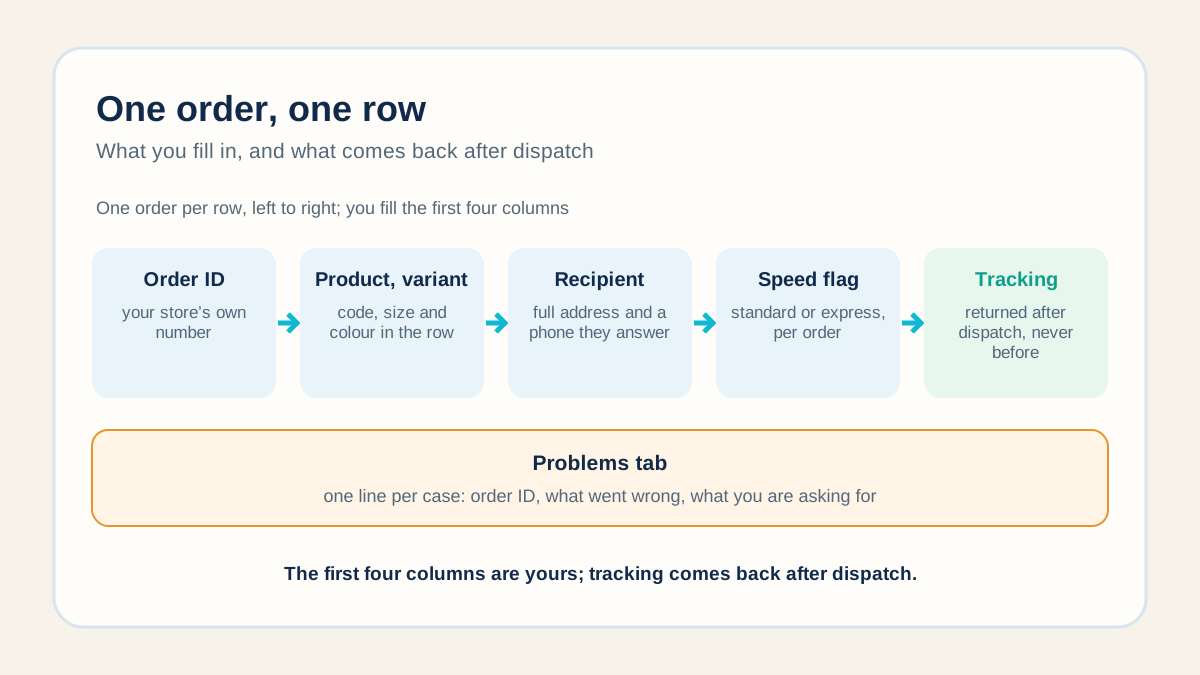
Everything needed to pack and deliver that order, in that row: your order ID, the recipient's name, the full address, a phone number, the product code and variant, the quantity, and any instruction that applies to that order only.
The address needs a house or building number and a phone the recipient answers; over-length or mismatched fields are rejected, as the address the warehouse needs explains.
Write the size and colour in the row itself, not in a screenshot or a second file someone has to open, and use the same product code every time for the same variant. Use your store's own order ID, so a question about a parcel names one row and one row only.
How do I ask for express on one order?
Ask your group to add a speed column if your sheet has none, then flag it in that order's row. When a seller in the week to 10 October asked by message for one order to go express, the answer was to flag fast shipping directly in the sheet for future orders, with a separate reply where a destination had no fast option.
Express is a different lane with its own transit figure, and no calendar date is promised on either lane. A flag in the row stays with the order, and the quote or invoice shows any separate express line before you approve it.
Where will I see tracking, and when?
Posted in your group or entered in the sheet you share, once the parcel is dispatched. A tracking number is issued at dispatch and not before the goods are in hand, so a blank tracking cell on an order still being bought or packed is normal.
Copy each number to the matching order on your platform. Your store sends the customer notification by its own settings, so check the notification on your first order. The FAQ sets out when a tracking number is issued and what an early status means.
Where do problems and returns go?
On their own tab, one line per case, never mixed in with new orders. Give each line the order ID, what went wrong and what you are asking for; a defect or damage report needs a photo and is raised in your group within 14 days of delivery; the tab line is your record.
Ask in your group for the tab to be brought up to date, and check each case whenever an update is posted. How to run that tab so no case goes quiet is set out in keeping open issues visible.
Customer returns are a separate question: before you publish a return address, confirm an arrangement for that product and destination.
When should I connect the store instead?
When your platform supports a connection, or when copying rows by hand starts to produce errors. Shopify connects through collaborator access once the store app named in your group is installed, with no staff account needed, and WooCommerce connects directly, with orders and tracking flowing both ways.
The steps, and what goes wrong at the start, are in how a Shopify store connects to a fulfilment agent. Test the connection with a controlled order before you switch the sheet off.
Until then, set up the sheet with your order ID in the first column and the tracking column left blank, and send the first file with a single order you can check from row to customer notification.
Have a specific fulfilment question?
Send us the product, destination and order context on WhatsApp (+86 178 4666 9989). A clear answer is more useful than a generic estimate.
Ask Questions on WhatsApp →